In Part 2 of this blog post series, you’ve seen the interaction between SQL Server and the Windows Server Failover Cluster (WSFC). In Part 3, you’ve seen the different WSFC components that make Always On Availability Groups (AG) highly available.
If SQL Server and the WSFC need to coordinate and communicate consistently to stay on top of what is going on, where is this information stored?
Recall the role of the Database Manager in Part 3. The Database Manager in the WSFC is responsible for keeping track of and storing this information in the Cluster database. The Cluster database is stored locally in the Windows registry under the HKEY_LOCAL_MACHINE\Cluster hive. You also have a copy of the Cluster database in a shared disk if you configured a disk witness.
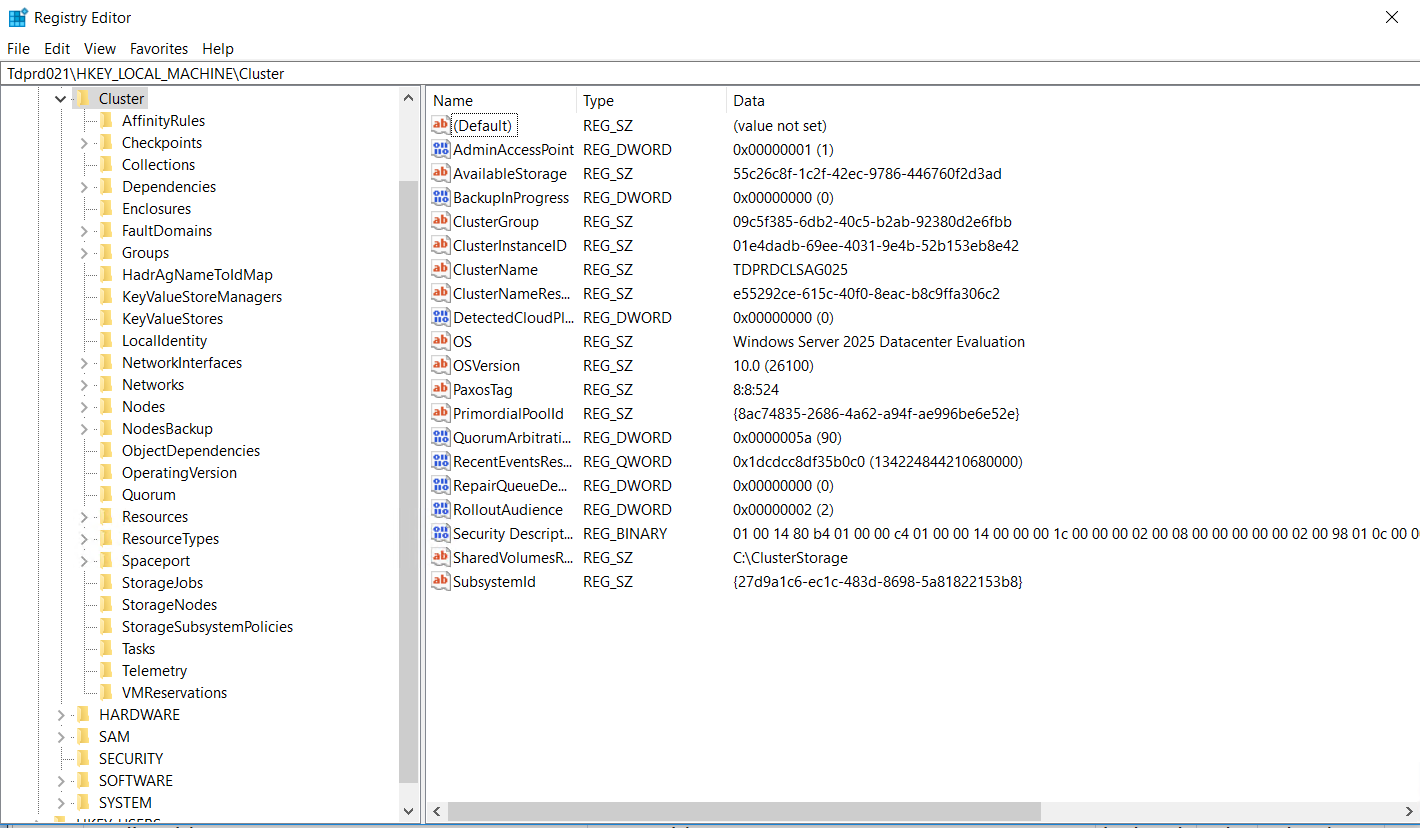
Do note that messing around with the Windows registry without guidance from Microsoft product support renders your environment unsupported. This is mainly for educational purposes only. Do not do this in your production environments.
There’s more inside the Cluster database than we need to know regarding AGs. For this purpose, we will focus on SQL Server and AG-related information inside the Cluster database.
In order for SQL Server and the WSFC to coordinate and communicate consistently, this information also need to exist inside SQL Server. Let’s query the SQL Server DMVs to find this information.
SELECT * FROM sys.dm_hadr_name_id_map
SELECT * FROM sys.dm_hadr_instance_node_map
SELECT * FROM sys.availability_replicas
SELECT * FROM sys.availability_group_listeners
SELECT * FROM sys.dm_hadr_availability_replica_states
SELECT * FROM sys.dm_hadr_database_replica_cluster_states
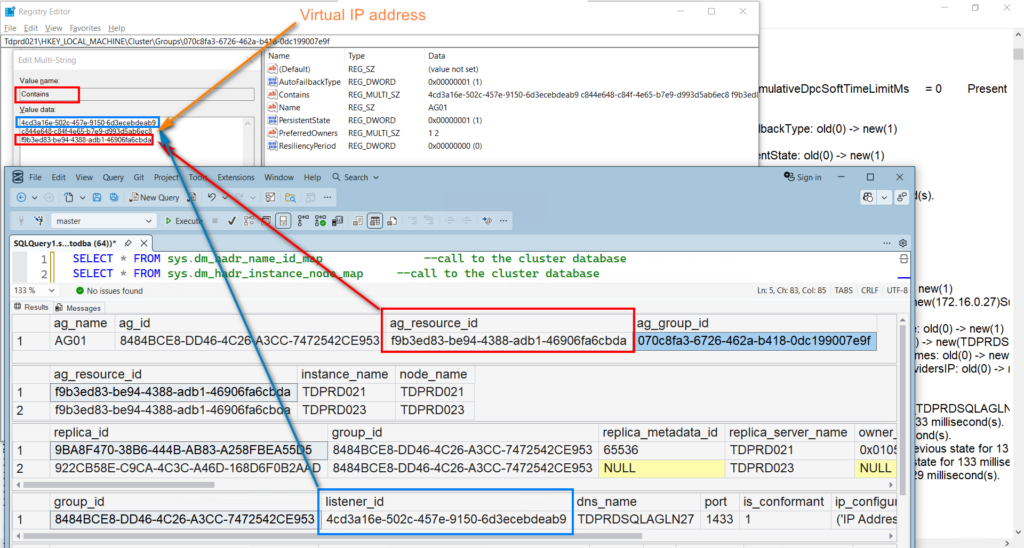
Exploring the sys.dm_hadr_name_id_map DMV, it displays the mapping of AG resource and resource group (WSFC calls this “Roles”) inside the Cluster database.
Cluster Resource Group Information
Let’s start with cluster resource groups.
You can expand the HKEY_LOCAL_MACHINE\Cluster\Groups hive to see the data.
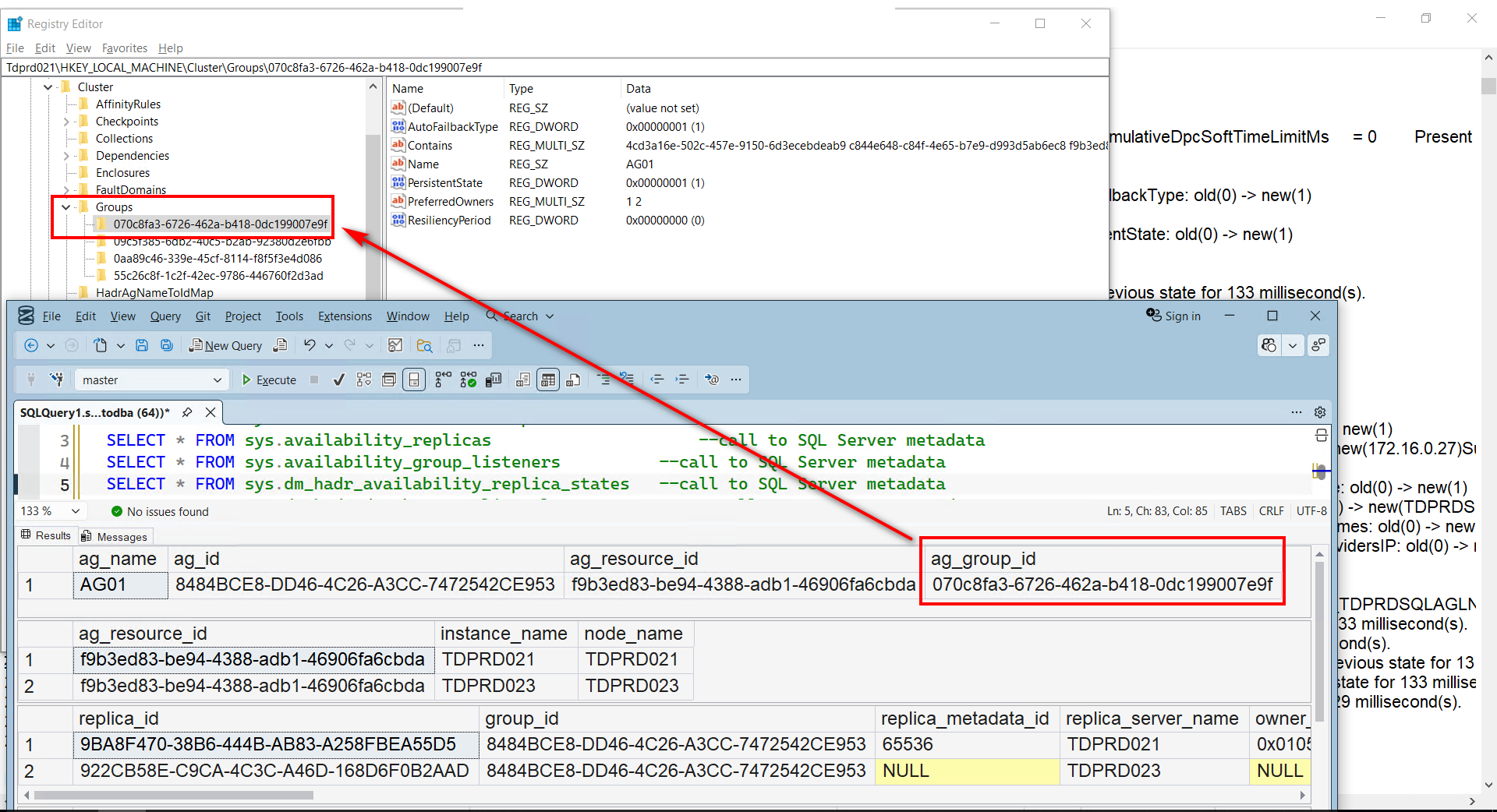
The GUID value 070c8fa3-6726-462a-b418-0dc199007e9f maps to the resource group/Role named AG01. It’s a little bit confusing because the name of the resource group and resource (the AG itself) is the same. Yet the GUID values – and their corresponding containers (resource groups versus resources) – are different. I just wished Microsoft would rename the resource group differently.
The Cluster database contains additional information regarding how the resource group AG01 is configured.
- – Name: AG01. This is the resource group name, the same name as the AG from when you defined the AG name as per Part 1 of this blog series. Didn’t I say the naming convention is confusing?
- – AutoFailbackType: A setting for the resource group that tells the WSFC to automatically failback to the “preferred owner”. In this example, you see a value of 1. This means that the WSFC will always run the AG01 resource group on the node with the NodeId=1.
- – PreferredOwners: A setting for the resource group that tells the WSFC which node is the “preferred owner” to run it on. In this example, you see a value of 1 & 2 as this WSFC only has 2 nodes.
In my AG deployments, I disable AutoFailbackType and remove values for PreferredOwners. Keep in mind that a failover (or failback) is an technically outage. It’s taking the databases in an AG offline as part of the process. My goal for high availability is to minimize outages.
What I wanted to highlight here is the Contains key –HKEY_LOCAL_MACHINE\Cluster\Groups\{GUID value}\Contains.
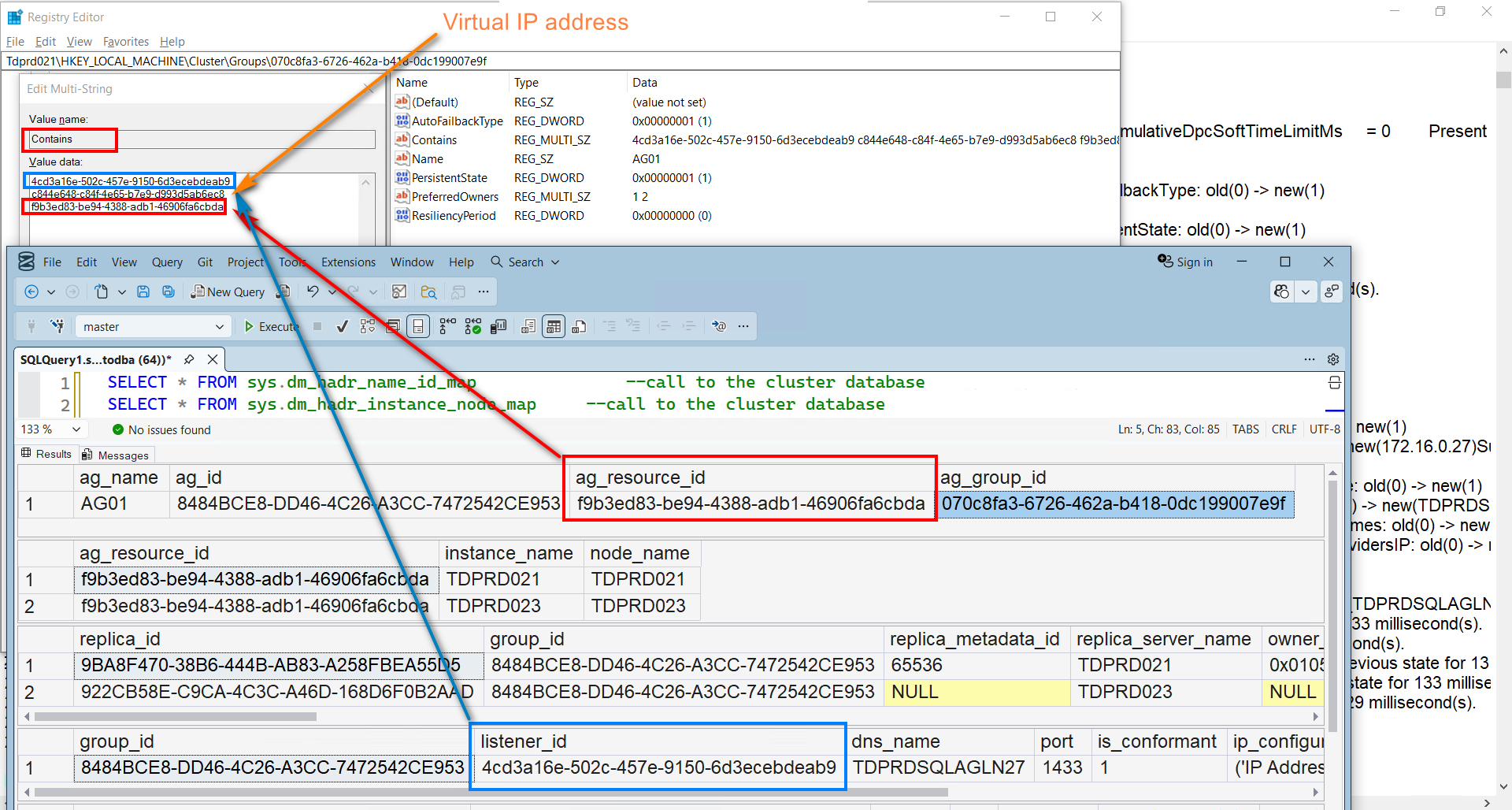
The resource group AG01 “contains” the listed resources with their corresponding GUID values.
- – 4cd3a16e-502c-457e-9150-6d3ecebdeab9 – this is the GUID value of the AG listener name as per the sys.availability_group_listeners DMV. That is, if you created the AG listener name using SQL Server APIs (T-SQL, SSMS, PowerShell with SMO like dbatools). If you created an extra AG listener name inside the WSFC, the DMV will not display that information.
- – f9b3ed83-be94-4388-adb1-46906fa6cbda – this is the GUID value of the AG resource as per the sys.dm_hadr_name_id_map DMV.
- – c844e648-c84f-4e65-b7e9-d993d5ab6ec8 – this is the GUID value of the AG listener virtual IP address. This value only exists in the Cluster database
From the point-of-view of the WSFC, the AG01 resource group needs all three resources in order for it to function properly. Recall from Part 2 that the AG01 resource group changes state from Offline to Online and everything in between.
This is a side effect of the different states of these three resources. And if any of these resources become Offline, the entire resource group also goes offline. I described this behavior in Exploring the Windows Server Failover Cluster Dependency Report.
Individual Clustered Resource Information
There’s more to the AG than a simple clustered resource. An AG has
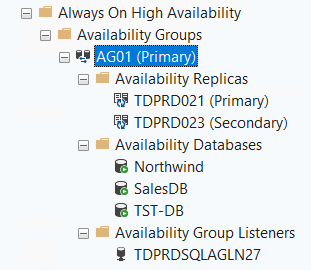
- – replicas
- – databases
- – failover mode (automatic or manual)
- – which one is the current primary
A quick look at the AG in SSMS Object Explorer will give you that information visually (although it doesn’t tell you anything about failover mode).
 —
—
This information is also stored in the Cluster database. Expand the HKEY_LOCAL_MACHINE\Cluster\Resources hive and look for the GUID value of the AG resource.
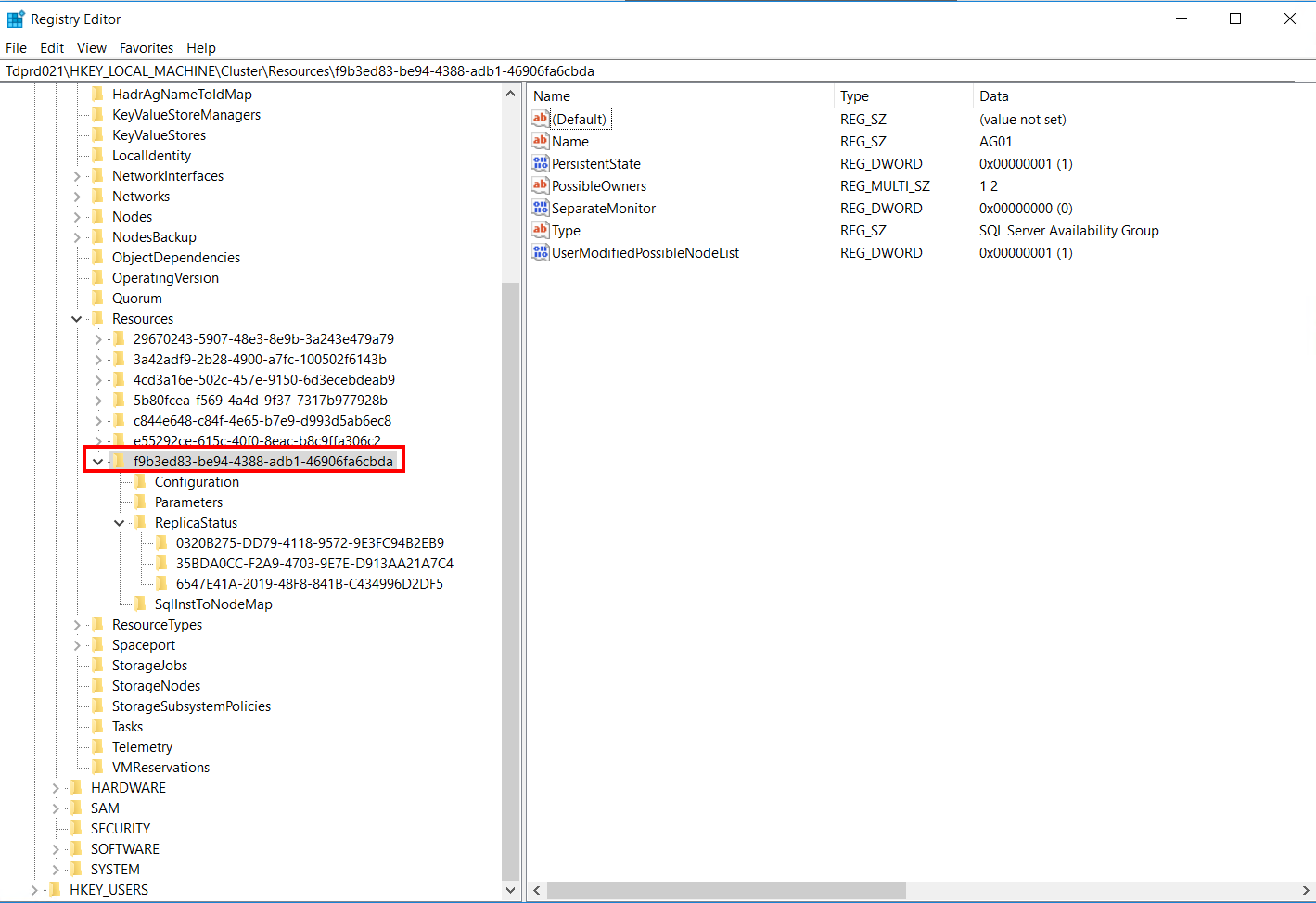
You can see the following information:
- – Name: AG01 – the name of the AG. Despite having the same name, this is the AG resource, not the AG resource group/role.
- – Type: SQL Server Availability Group – the type of clustered resource. The existence of this resource type is because of the AG cluster resource DLL – hadrres.dll. This is what classifies a resource as cluster-aware. I’ll cover this in more detail in a future blog post.
- – PossibleOwners: This contains the NodeId values of the WSFC nodes that can run the AG resource. The WSFC has no concept of automatic or manual failover. This is how it determines which node can run the AG.
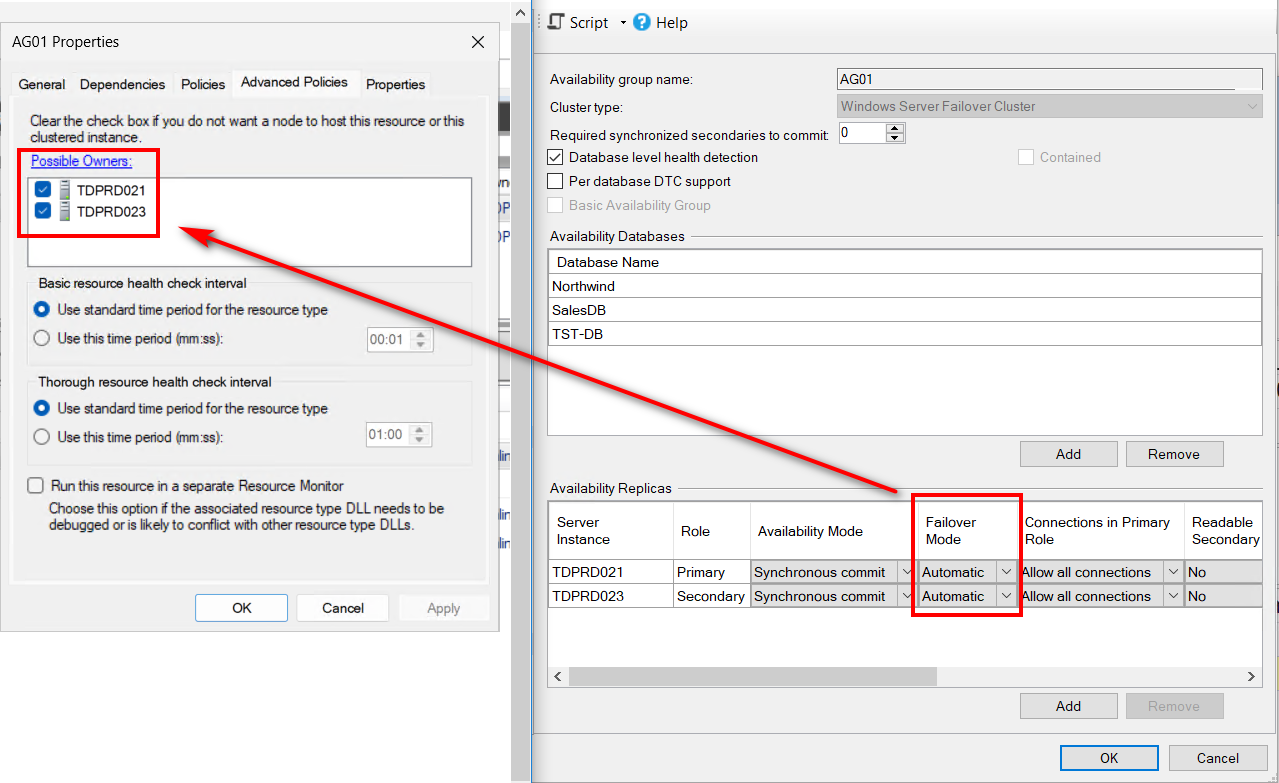
In my online course SQL Server Always On Availability Groups: The Senior DBA’s Ultimate Field Guide, I highlight how the AG Failover Mode (automatic or manual) dictates the list of Possible Owners inside the WSFC. This is one of those things that you NEVER change outside of the available SQL Server APIs (T-SQL, SSMS, or PowerShell with SMO like dbatools). Doing so runs the risk of having SQL Server be inconsistent with the Cluster database.
Exploring the HKEY_LOCAL_MACHINE\Cluster\Resources\{GUID value}\Configuration key, you’ll see another GUID value.
As per the sys.availability_replicas and sys.dm_hadr_availability_replica_states DMVs, it’s the replica_id value of the current primary replica. In this example, TDPRD021.
This is how the WSFC keeps track of and maintains the SQL Server instance running as the current primary replica. If a failover occurs, this value gets updated to the GUID value of the other AG replica running as the new primary replica.
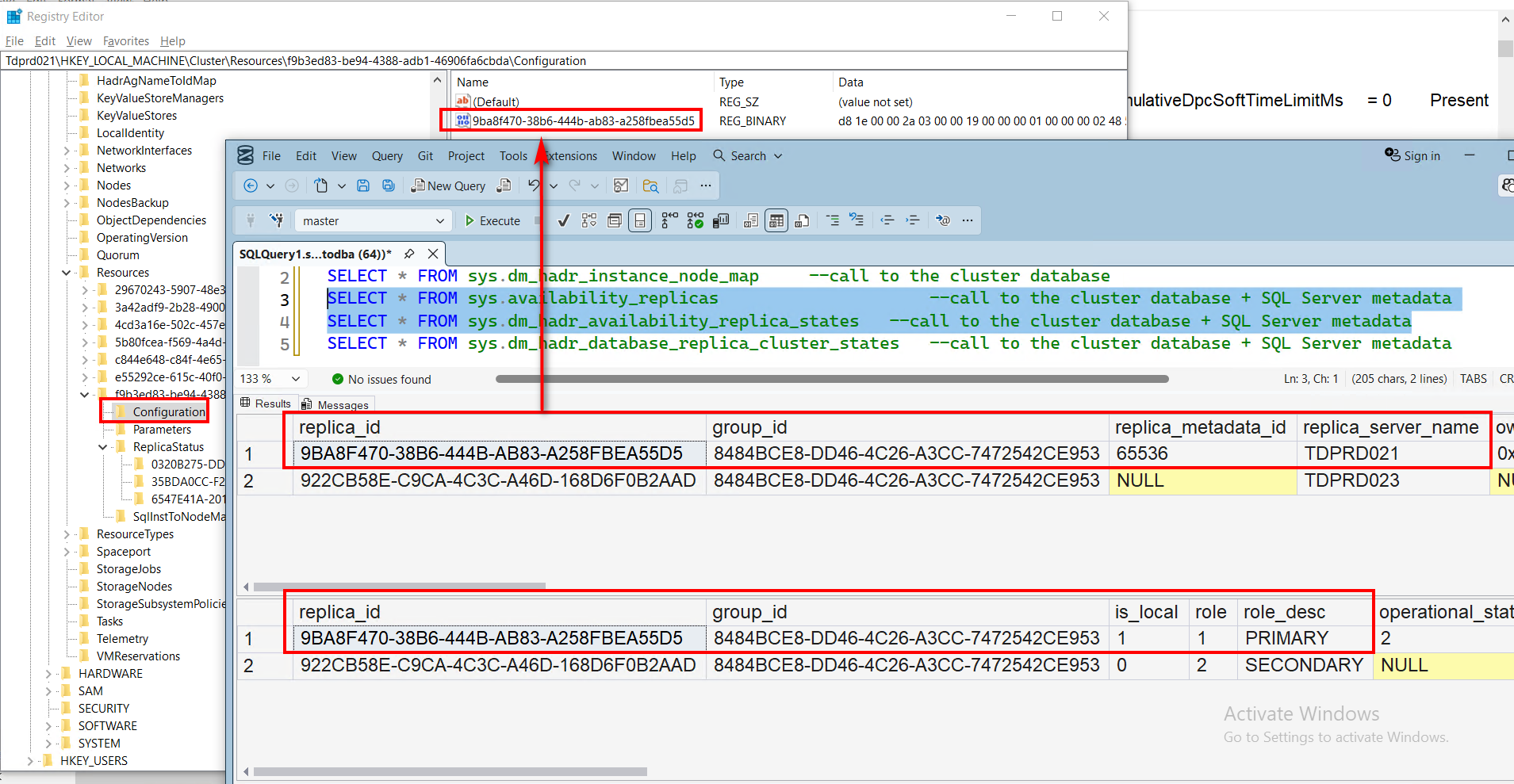
Exploring the HKEY_LOCAL_MACHINE\Cluster\Resources\{GUID value}\ReplicaStatus key, you’ll see several GUID values.
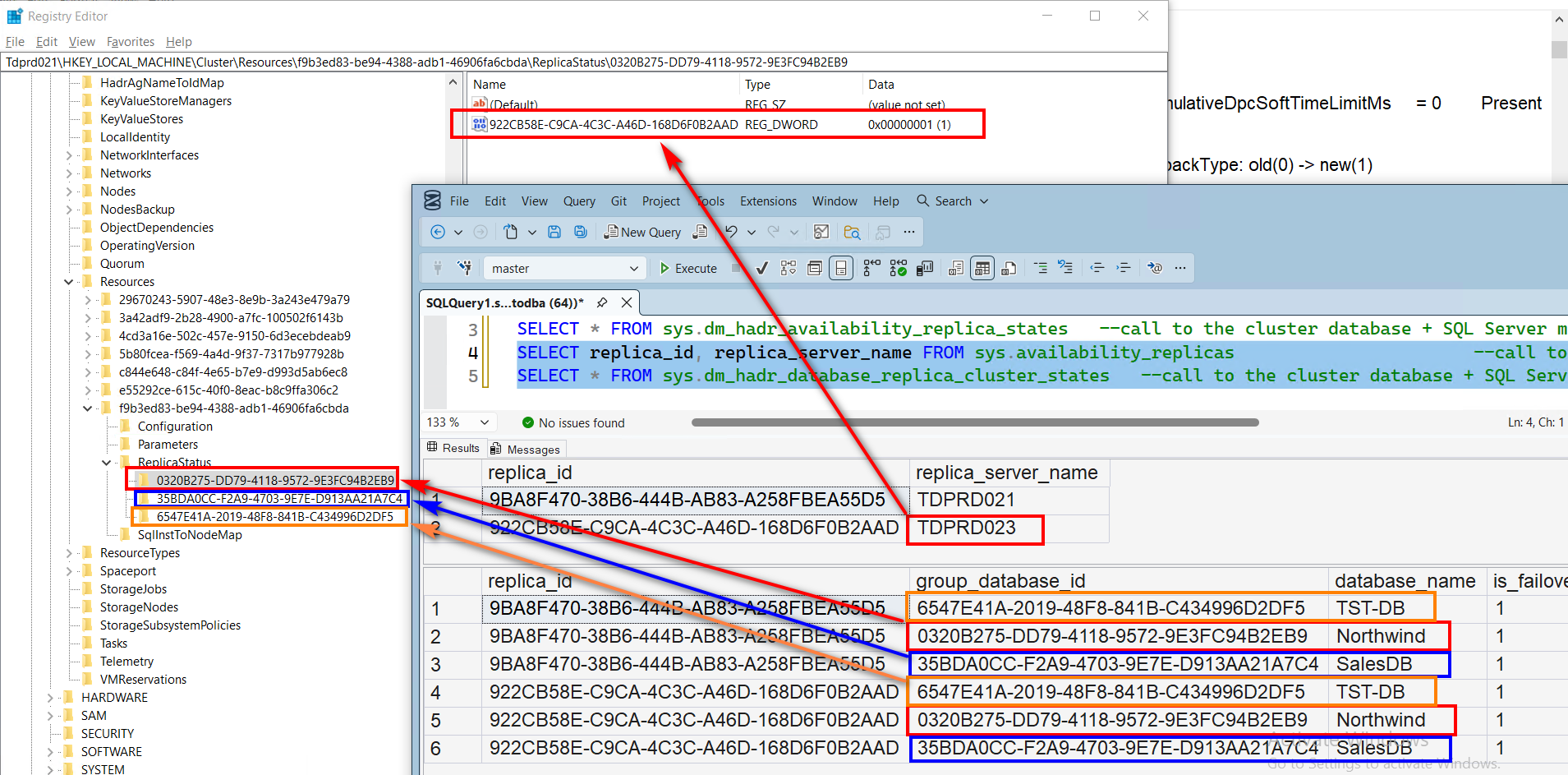
Each GUID value refers to the individual database inside the AG, as per the sys.dm_hadr_database_replica_cluster_states DMV.
You’ll also notice that each database – HKEY_LOCAL_MACHINE\Cluster\Resources\{GUID value}\ReplicaStatus\{database GUID value}\ key – will have a set of GUID values. This points to the secondary replica of the AG. In this example, only one secondary replica is configured – TDPRD023. You will have more in this list depending on the number of secondary replicas configured for your AG.
There’s one registry key that got me confused for a very long time. And it wasn’t until I read this blog post from my good friend and fellow MCM Sean Gallardy that things started to click.
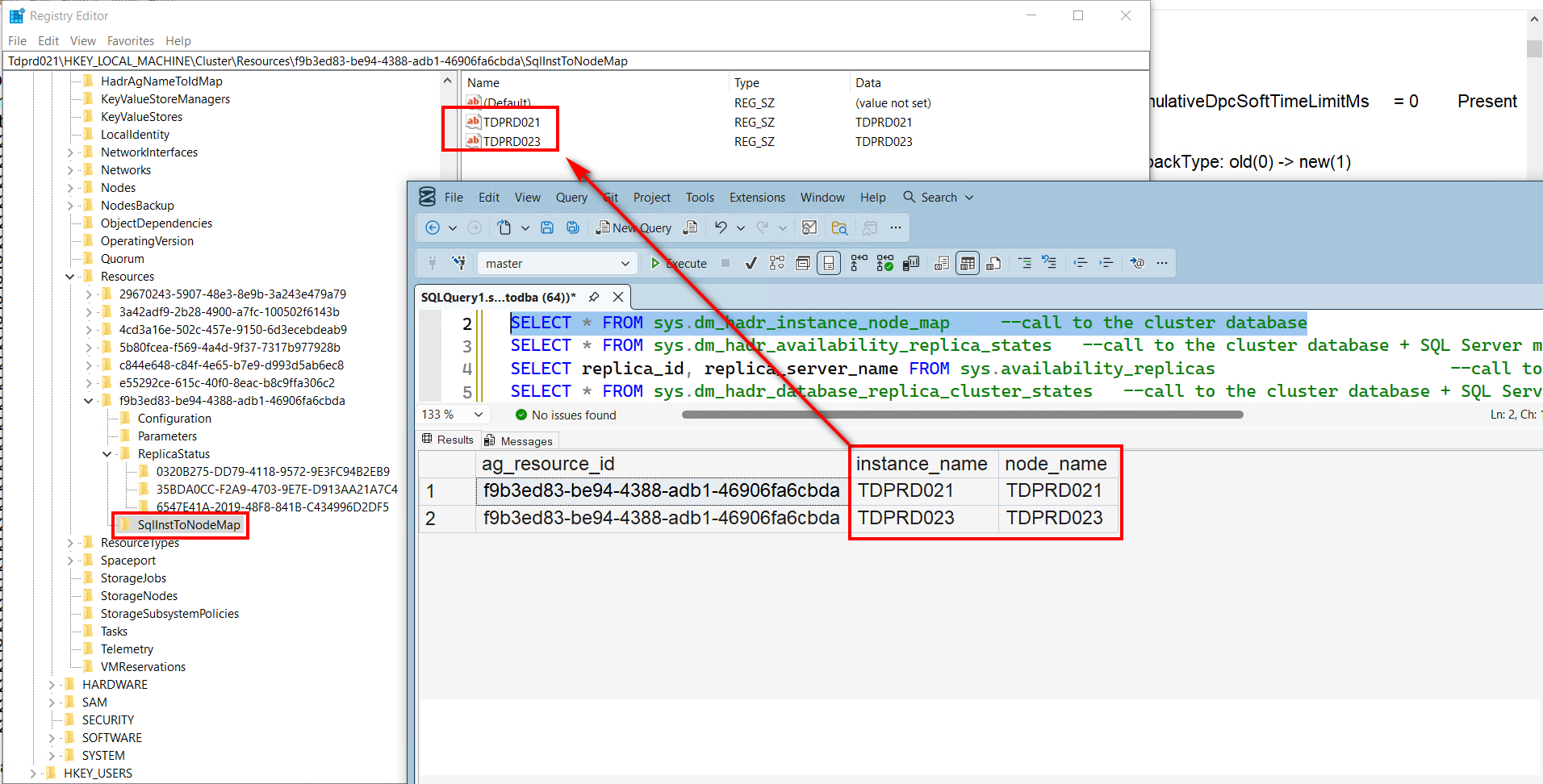
The SqlInstToNodeMap key contains the mapping between the AG replica and the SQL Server instance. It might be obvious that the sys.dm_hadr_instance_node_map DMV describes this registry key. And while it’s easy to associate an AG replica to a WSFC node, it’s not always the case. Because you can have an AG replica that isn’t necessarily a default instance.
I’m not really a fan of using named instances anymore. Especially now that we have virtualization, private cloud infrastructures, and modern deployment options available.
Named instances were a remnant of the past, allowing multiple independent SQL Server installations to run on a single host. That was a great idea to reduce licensing costs back when all we had was bare metal servers.
Today, we have support for running SQL Server on virtual machines, Docker containers, and Kubernetes. You can license all the available CPU cores on a physical machine and run as many VMs, containers, and pods – all using default SQL Server instances – as you want.
But, as I always say, old habits die hard. Application vendors (several Microsoft server products included) and some old-school DBAs still swear by named instances, even though they are no longer relevant. That’s why I still see SQL Server named instances out in the wild.
Data Consistency is Key
You’ve seen a glimpse of the Cluster database and how the data inside it corresponds to what’s inside SQL Server.
In order for the WSFC to provide high availability to your AG, what’s inside the Cluster database needs to be consistent with what’s inside the SQL Server metadata. Any inconsistencies could potentially cause instability and – even worse – extended outages.
And the reality is, we can’t really avoid unexplained issues that could cause outages. Let’s be real – we’re working with software created by imperfect humans. A cumulative update or another software running on the server could potentially cause this [Cluster database-SQL Server metadata-sync] to get corrupted.
And while I don’t recommend messing with the Windows registry outside the guidance of Microsoft support, there are extreme cases in which you may need to bring the databases back online ASAP and worry about stabilizing the WSFC and bringing it to a supported state once the dust settles. Doing so requires understanding the interaction between SQL Server and the WSFC.
In a future blog post, I’ll cover cover the details of the SQL Server Availability Group cluster resource DLL – hadrres.dll – and how it interacts with the WSFC to keep the AG highly available.