“How can you expect to fix the engine if you don’t even know how it works?”
– my friendly neighborhood car mechanic.
My 20-year old Nissan X-Trail has been misbehaving recently.
I can understand that, given how old it is, it has served it’s purpose.
But, no. It still drives great and has never failed me during the harsh winter storms.
Besides, I’m a bit of a nostalgic. I’ll keep this car as long as I can and maintain it as much as I can.
And when I said “misbehaving,” I really only meant the air conditioning. Besides, I have no use for the AC during the winter.
While I’d like to take my car to the mechanic, I couldn’t get a workable appointment due to my schedule. And I couldn’t wait for months to get it fixed.
So, I decided to fix it myself. Besides, how hard can it be?
I downloaded the official service manual – the guide that certified mechanics use – and looked up the section on refrigeration system.
After spending a few hours reading the service manual and performing simple troubleshooting, it turned out that I only needed to refill the AC’s refrigerant. It made sense. I haven’t refilled the refrigerant on this car’s AC since I got it 16 years ago. Yikes!
I grabbed a can of refrigerant and some tools at the local Walmart store. A few minutes later, my car AC is working again.
What’s Under the Hood?
In my previous blog post on The SQL Server DBA’s Guide to Windows Server Failover Clustering: The Interaction From a 10,000-ft View, I walked you through the interaction between SQL Server and the Windows Server Failover Cluster (WSFC) to make Always On Availability Groups (AG) highly available. Peeking through the cluster error log while the CREATE AVAILABILITY GROUP command runs exposes you to the sequence of events that are happening inside the WSFC.
But what makes this work?
What’s inside the WSFC that allows SQL Server to interact with it and, eventually, run on top of it?
Let’s explore the engine and the different components that make WSFC work.
The Cluster Service (ClusSvc.exe)
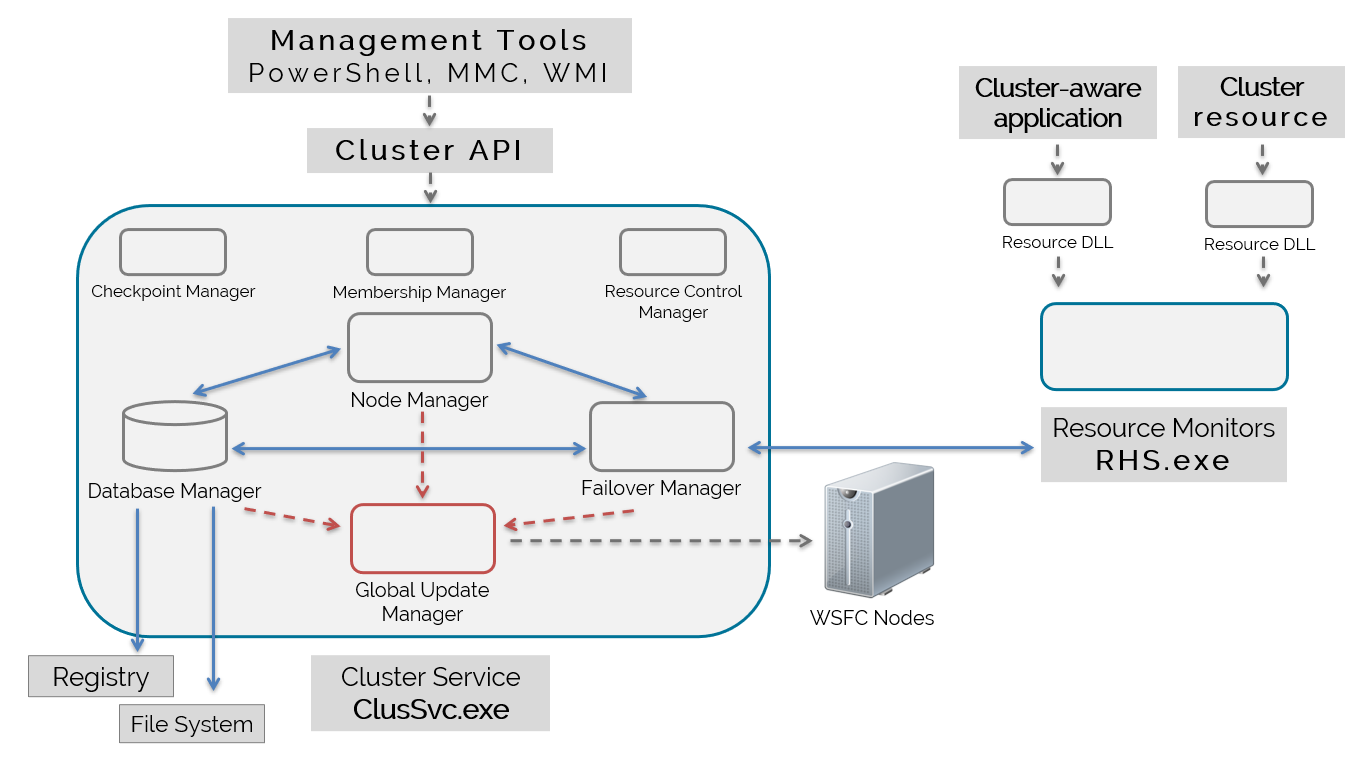
Let’s start with the cluster service (ClusSvc.exe). The cluster service gets created when you enable the Failover Clustering feature on a Windows Server operating system. However, it doesn’t get started until you add the server as a node in a WSFC.
The cluster service runs as an executable on a WSFC node. It is what makes WSFC work.
The cluster service on every node of the WSFC work together to provide high availability, health detection, and perform failover activities. Think of the cluster service as being a member of a mission-critical team. Actually, it is.
As you see in the diagram above, inside the cluster service are different functional components. These components are what made the different events you saw in the cluster error log happen. And while there are more components inside the cluster service that I can fit in the diagram, I only want to focus on those that affect AGs.
Database Manager
From the name itself, the Database Manager is responsible for maintaining the cluster configuration information. You can think of it as a database engine, just like SQL Server, inside the cluster service.
And while it is not a full-blown relational database, it functions just like one. It stores data on disk, has key-value pairs, implements transactions, keeps data consistent, etc.
Given the example in the previous blog post, there are several information about the AG that the WSFC needs to keep track of inside the cluster database.
- – the name of the AG
- – the replicas in the AG
- – failover mode of the AG replicas (automatic or manual)
- – the databases in the AG
- – the AG listener name (if you created a listener name)
- – the virtual IP address of the AG listener
I’ve only provided a list of the obvious ones, those that you define when creating an AG. There are other information like which nodes are part of the WSFC, the witness type, etc.
Where is the cluster database stored on disk? If you look at the diagram above, the arrows point to two (2) locations.
The first location is in the Windows registry, under the HKEY_LOCAL_MACHINE\Cluster.
Do note that messing around with the Windows registry without guidance from Microsoft product support renders your environment unsupported. This is mainly for educational purposes only. Do not do this in your production environments.
The second location is on a shared disk. That is, if you configured a disk witness for your WSFC. A copy of the cluster database is stored on the disk witness.
Changes to the cluster database are replicated across all the WSFC nodes, keeping cluster configuration as consistent as possible via transactions. Think of it like a distributed database where changes on one node are stored on the local copy of the cluster database and replicated to the other nodes.
I’ll keep it at a high-level for now. We’ll dive deeper once we have the other relevant cluster service components. You’ll actually see the information about the AG inside the cluster database as we dive deeper.
Node Manager
The Node Manager is responsible for assigning resource group ownership to nodes based on node health and availability. It also does this based on resource group configuration.
In the context of the AG, the Node Manager is responsible for assigning the primary replica to the specific WSFC node.
If you ran the CREATE AVAILABILITY GROUP command on a specific SQL Server instance, the Node Manager assigns the AG to the node running the instance, making it the primary replica. Using WSFC terminology, this is what “assigning resource group ownership to nodes” means.
Resource group ownership is also done based on your configuration of the “failover mode“. A replica configured with manual failover mode will not have its corresponding node assigned as owner of the AG resource group.
Imagine having a 3-node WSFC (NodeA, NodeB, and NodeC) with NodeA and NodeB configured as replicas in an AG. If the primary replica is currently running on NodeA and an issue triggers a failover, the Node Manager checks first if NodeB is available. If it is, the Node Manager assigns NodeB as the new owner of the AG. If it isn’t, the Node Manager keeps NodeA as the owner while the AG stays offline. Why? Because NodeC is not configured as a replica in the AG.
It’s the same as having NodeA, NodeB, and NodeC as replicas in the AG but only NodeA and NodeB are configured with automatic failover while NodeC configured with manual failover.
I could have said asynchronous commit since you can never have automatic failover with asynchronous commit. But the Node Manager doesn’t care about synchronous or asynchronous commit replication mode. It only cares about node ownership. And failover mode in an AG is what affects node ownership of resource groups.
Moving the AG from one node to another is the job of the next component.
NOTE: There is more to the Node Manager than what I’ve written here. For example, the Node Manager is responsible for sending heartbeat messages to the other nodes. It’s this heartbeat messages that determine node health and availability. I want to keep the focus on AG-related functions.
Failover Manager
The Failover Manager is the one responsible for performing management of cluster resources. This includes restarting a resource in a resource group, failing over a resource group, and starting up a resource.
In the example with a 3-node WSFC and 2-replica AG, the Failover Manager is the one responsible for moving the AG from one node to another based on node health and availability. Once the Failover Manager completed moving the AG to the new “active” node as the new primary replica, the Node Manager assigns that node as the new owner of the AG.
Note that this is not just for the AG. There are other resources and resources groups running in a WSFC. The Cluster Core Resources is the first resource group created when you build a WSFC. When it comes to managing the witness, that’s the job of the Failover Manager.
NOTE: From Windows Server 2008 onwards, the Failover Manager component is now a function of the Resource Control Manager.
Checkpoint Manager
Didn’t I say that the cluster database functions similar to a relational database?
Every record written in the cluster database is treated as a transaction. When you create an AG, the metadata is first stored in SQL Server. That metadata is passed on to the cluster service and through the Database Manager.
After the Database Manager successfully writes the corresponding data to the cluster database, it sends a message to the Checkpoint Manager, marking that transaction as completed, and passes that message back to SQL Server for it to confirm that the “nested transaction” has been completed. It, then, replicates this change to the other copies of the cluster database on the other nodes.
In essence, the Checkpoint Manager functions like the checkpoint process inside SQL Server. When you run a transaction in SQL Server, the database engine first writes the corresponding transaction log records on the LDF file. During a regular checkpoint process, those transaction log records are written to the MDF file, persisting the change on disk.
It is the Checkpoint Manager that guarantees data consistency of the cluster configuration, much like how SQL Server runs crash recovery to maintain data consistency. In cases where the cluster service or the current node fails, data in the cluster database is checked and used as the source for cluster (or cluster resources) configuration when brought online.
Imagine the case of modifying the virtual IP address of an AG listener – from 172.25.0.15 to 172.25.0.21. SQL Server passes that information to the cluster service where the Database Manager stores that information in the cluster database. Once the data about the new virtual IP address has been persisted in the cluster database, the Checkpoint Manager marks that transaction as completed and replicates that information to the other copies of the cluster database on the other nodes in the WSFC.
Suppose the Checkpoint Manager failed to complete it’s function as you are changing the AG listener virtual IP address. And the node crashes unexpectedly. When the WSFC brings the AG online on another node, the AG listener virtual IP address will still be the old value – 172.25.0.15.
Now, imagine this behavior when making modifications to your AG – adding/removing databases, adding/removing replicas, changing replica failover mode, etc.
Side Note: Split Brain
Having inconsistent cluster database across the WSFC nodes is what is known as “split brain“.
I know you might have a different understanding of the concept of split brain, where a “network partition” prevents WSFC nodes from communicating with one another.
Technically, the network partition is the reason for split brain. Because nodes in the WSFC cannot talk to each other because of network issues, the cluster database on each node can become inconsistent.
You might think it’s just semantics.
But there’s a difference between the cause (network partition) and the issues (split brain).
The technologies available today were created to prevent the cause (network partition) in order to avoid the real issue (split brain). An example of this is the concept of a witness and even having a disk witness to store a copy of the cluster database.
Moving on.
Membership Manager
The Membership Manager is responsible for managing cluster membership – adding/removing nodes and configuring a witness – as well as monitoring their health. This provides a consistent view of the cluster health.
While simple as it may seem, the magic of the Membership Manager is the algorithm that determines the overall health of the nodes, the witness, and the WSFC.
Take the same example above, a 3-node WSFC plus a witness with a 3-replica AG.
If NodeB unexpectedly crashes, the Membership Manager runs the algorithm to validate that indeed NodeB is unavailable. Once validated, it removes NodeB from cluster membership then proceeds to tells the Database Manager to update the cluster database of this state and calls the Checkpoint Manager to persist this change. It also informs the Failover Manager to prevent the AG from failing over to NodeB.
With dynamic quorum and dynamic witness, the Membership Manager is also responsible for adding and/or removing votes from WSFC nodes and the witness.
Again, I’ll refrain from going beyond AG-related functions. Otherwise, this blog post would likely end up as a technical book.
Resource Control Manager
The Resource Control Manager manages clustered resources, groups them in resource groups, defines dependency hierarchy, implements failover policies, etc. It also manages the states of the clustered resources and passes that information to the Failover Manager to deal with them when a failure happens.
NOTE: From Windows Server 2008 onwards, the Failover Manager component is now a function of the Resource Control Manager.
In the case of creating an AG with a corresponding listener and virtual IP address, the Resource Control Manager creates the dependency between:
- – the AG listener to the virtual IP address
- – the AG to the listener
So, when the Failover Manager moves the AG from NodeA to NodeB due to an unexpected system crash, the Resource Control Manager makes sure that the virtual IP address is the first resource to come online. Once the virtual IP address is online, it brings the AG listener online. Only after the AG listener is brought online will the AG be brought online.
In the case of implementing failover policies, the Resource Control Manager coordinates with SQL Server to make sure the 5 conditions I describe in this blog post are met when initiating an automatic failover.

Global Update Manager
I was delivering this blog post as a presentation at a conference a few months ago. The audience had a quick laugh when I showed them a picture of a telephone switchboard operator to represent the Global Update Manager. Because most of the attendees were older than 30 years old. And most of them still remember the experience of calling a telephone operator to make long distance phone calls. Kids nowadays just use iMessage or Facebook Messenger to call friends and family across the globe.
The Global Update Manager is what all of the cluster service components use to replicate changes to the cluster database across all the WSFC nodes. That’s why you see arrows in the diagram above from the different components pointing to the Global Update Manager.
The Global Update Manager sends these cluster database changes as an atomic commit – either all changes are replicated to all healthy WSFC nodes or none at all. And this is yet another mechanism that prevents split brain in the WSFC, keeping cluster configuration and state consistent across all of the nodes.
The Global Update Manager of the other nodes receives these changes and proceeds to persist them on their local copy of the cluster database.
That’s It For Now
I’ll wrap up this blog post before I go overboard. Like I said, I’m trying to restrict coverage of these components to those relevant to running an AG in a WSFC. And there’s way more components than I can cover in a blog post.
I wanted to provide better context for when we start digging deeper into the cluster error log and expand what I covered in the previous blog post. Otherwise, reading the cluster error log can be cryptic as you try to decipher when each log event means.